Showing posts with label Invoice verification. Show all posts

Friday, March 3, 2023

Unplanned Delivery Costs in SAP

However, it often happens that these costs are not exactly known when the purchase order is created and are only specified in the invoice. In invoice entry, you must therefore differentiate between planned and unplanned delivery costs.

Charges that aren’t known at the time of creation of purchase order and are directly entered in logistics invoice verification (MIRO).

There are 3 ways to enter unplanned delivery charges, depending on the business requirements, the relevant method can be chosen:-

1. Unplanned delivery costs field in transaction code –  MIRO

2. Direct posting to GL account

3. Subsequent debit posting


Unplanned delivery costs are those that were not agreed in the purchase order and are only recorded in the invoice verification. When you enter the invoice, enter the total amount of the unplanned delivery costs on the Details tab page in the Header data.


 Ø  In Customizing, you configure whether the system automatically distributes the unplanned delivery costs among the invoice items or posts the costs to a separate general ledger (G/L) account.

 Ø  The automatic distribution can only be made to the material items. However, it is also possible to include the items for the planned delivery costs in the distribution.

Ø  By distributing the delivery costs to the invoice items, the amounts of the invoice items are automatically increased by the delivery costs part.

Ø  When you post the invoice, the unplanned delivery costs are treated as price variances. However, the system does not perform a price check after automatically distributing the delivery costs. Unplanned delivery costs that were distributed to individual items are not listed separately in the PO history. They are already a part of the calculated value.

Ø  If the unplanned delivery costs are posted to a separate G/L account, the unplanned delivery costs are not debited to the stocks or the account assignment objects. The system does not show unplanned delivery costs that are posted to a separate G/L account in the PO history.

Ø  An invoice that contains only unplanned delivery costs can be posted with reference to a PO as a subsequent debit only. This means that at least one invoice for this PO must be received. Otherwise, all the invoiced values would be zero and it would not be possible to distribute the delivery costs.

 Distribution of Unplanned Delivery Costs 


 Ø  The system apportions the unplanned delivery costs to the items in proportion to the total value invoiced so far and the values in the current invoice.

Ø  You can also distribute unplanned delivery costs manually to individual invoice items by manually changing the amounts of the invoice items. In this case, the delivery costs are entered in the same way as price variances. The system performs a price check and the invoices are blocked wherever the tolerances set in Customizing are exceeded.

Account Movements with Unplanned Delivery Costs


Ø  If the automatic distribution of unplanned delivery costs is active in Customizing for the company code, the partial amounts allocated to the items are updated as price variances.

Ø  Based on the price control of the material, the following movements occur:


Ø  For a material with moving average price (MAP), the system posts to the stock account as long as there is a stock coverage. 

Ø  For a material with standard price, the system posts the unplanned delivery costs to the price difference account you have set up. 

Ø  However, if you selected posting to a separate G/L account in Customizing, then you must also define the G/L account that is to be posted automatically in Customizing. For this, maintain the Unplanned Delivery Costs (UPF) transaction in the automatic account determination. The total amount of the unplanned delivery costs is then posted to this G/L account when you post the invoice.

Ø  You can maintain a default value for each company code in Customizing for the tax code of the separate posting line.

 Customizing – Unplanned Delivery Costs


 We can find the Customizing settings relevant for unplanned delivery cost under the following paths:


SPRO Materials Management Logistics Invoice Verification Incoming Invoice Configure How Unplanned Delivery Costs Are Posted


SPRO Materials Management Logistics Invoice Verification Incoming Invoice Maintain Default Values for Tax Codes (OMR2)


SPRO Materials Management Valuation and Account Assignment Account Determination Account Determination Without Wizard Configure Automatic Postings and then Account Assignment (OBYC)

Tuesday, October 11, 2022

Tolerance Keys at Invoice Verification Level in SAP

 Invoice Tolerance Keys in SAP

The system uses the following tolerance keys to check for variances:

  • AN: Amount for item without order reference
    If you activate the item amount check, the system checks every line item in an invoice with no order reference against the absolute upper limit defined.
  • AP: Amount for item with order reference
    If you activate the item amount check, the system checks specific line items in an invoice with order reference against the absolute upper limit defined. Which invoice items are checked depends on how you configure the item amount check.
  • BD: Form small differences automatically
    The system checks the balance of the invoice against the absolute upper limit defined. If the upper limit is not exceeded, the system automatically creates a posting line called Expense/Income from Small Differences, making the balance zero and allowing the system to post the document.
  • BR: Percentage OPUn variance (IR before GR)
    The system calculates the percentage variance between the following ratios: quantity invoiced in order price quantity units : quantity invoiced in order units and quantity ordered in order price quantity units : quantity ordered in order units. The system compares the variance with the upper and lower percentage tolerance limits.
  • BW: Percentage OPUn variance (GR before IR)
    The system calculates the percentage variance between the following ratios: quantity invoiced in order price quantity units: quantity invoiced in order units and goods receipt quantity in order price quantity units : goods receipt quantity in order units. The system compares the variance with the upper and lower percentage limits defined.
  • DQ: Exceed amount: quantity variance
    If a goods receipt has been defined for an order item and a goods receipt has already been posted, the system multiplies the net order price by (quantity invoiced - (total quantity delivered - total quantity invoiced)).
    If no goods receipt has been defined, the system multiplies the net order price by (quantity invoiced - (quantity ordered - total quantity invoiced)).
    The system compares the outcome with the absolute upper and lower limits defined.
    This allows relatively high quantity variances for invoice items for small amounts, but only small quantity variances for invoice items for larger amounts.
    You can also configure percentage limits for the quantity variance check. In this case, the system calculates the percentage variance from the expected quantity, irrespective of the order price, and compares the outcome with the percentage limits configured.
    The system also carries out a quantity variance check for planned delivery costs.
  • DW: Quantity variance when GR quantity = zero
    If a goods receipt is defined for an order item but none has as yet been posted, the system multiplies the net order price by (quantity invoiced + total quantity invoiced so far).
    The system then compares the outcome with the absolute upper tolerance limit defined.
    If you have not maintained tolerance key DW for your company code, the system blocks an invoice for which no goods receipt has been posted yet. If you want to prevent this block, then set the tolerance limits for your company code for tolerance key DW to Do not check.
    • KW: Variance from condition value
      The system calculates the amount by which each delivery costs item varies from the product of quantity invoiced * planned delivery costs/ planned quantity. It compares the variance with the upper and lower limits defined (absolute limits and percentage limits).
    • LA: Amount of blanket purchase order
      The system calculates the sum of the value invoiced so far for the order item and the value of the current invoice and compares it with the value limit of the purchase order. It then compares the difference with the upper percentage and absolute tolerances defined.
    • LD: Blanket purchase order time limit exceeded
      The system determines the number of days by which the invoice is outside the planned time interval. If the posting date of the invoice is before the validity period, the system calculates the number of days between the posting date and the start of the validity period. If the posting date of the invoice is after the validity period, the system calculates the number of days between the posting date and the end of the validity period. The system compares the number of days with the with the absolute upper limit defined.
    • PC: Price variance for contract
      You can use the tolerance key PC to define price variances when entering an invoice with reference to a contract. For tolerance key PC, tolerance limits are defined per company code.

    • PP: Price variance
      The system determines by how much each invoice item varies from the product of quantity invoiced * order price. It then compares the variance with the upper and lower limits defined (absolute limits and percentage limits).
      When posting a subsequent debit/credit, the system first checks if a price check has been defined for subsequent debits/credits. If so, the system calculates the difference between (value of subsequent debit/credit + value invoiced so far) / quantity invoiced so far * quantity to be debited/credited and the product of the quantity to be debited/credited * order price and compares this with the upper and lower tolerance limits (absolute limits and percentage limits).
    • PS: Price variance: estimated price
      If the price in an order item is marked as an estimated price, for this item, the system calculates the difference between the invoice value and the product of quantity invoiced * order price and compares the variance with the upper and lower tolerance limits defined (absolute limits and percentage limits).
      When posting a subsequent debit/credit, the system first checks whether a price check has been defined for subsequent debits/credits, If so, the system calculates the difference between (value of subsequent debit/credit + value invoiced so far) / quantity invoiced so far * quantity to be debited/credited and the product quantity to be debited/credited * order price. It then compares the variance with the upper and lower tolerance limits defined (absolute limits and percentage limits).
    • ST: Date variance (value x days)
      The system calculates for each item the product of amount * (scheduled delivery date - date invoice entered) and compares this product with the absolute upper limit defined. This allows relatively high schedule variances for invoice items for small amounts, but only small schedule variances for invoice items for large amounts.
    • VP: Moving average price variance
      When a stock posting line is created as a result of an invoice item, the system calculates the new moving average price that results from the posting. It compares the percentage variance of the new moving average price to the old price using the percentage tolerance limits defined.

    Variances are allowed within predefined tolerance limits. If a variance exceeds a tolerance limit, however, the system issues a message informing the user. If an upper limit (except with BD and VP) is exceeded, the invoice is blocked for payment when you post it. You must then release the invoice in a separate step. If the tolerance limit for BD is breached, the system cannot post the invoice.

    Note that if you set all limits for a tolerance key to Do not check, the system does not check that tolerance limit. Therefore any variance would be accepted. This does not make sense particularly in the case of the tolerance key Form small differences automatically.

    Sunday, December 27, 2015

    GR/IR Account Maintenance


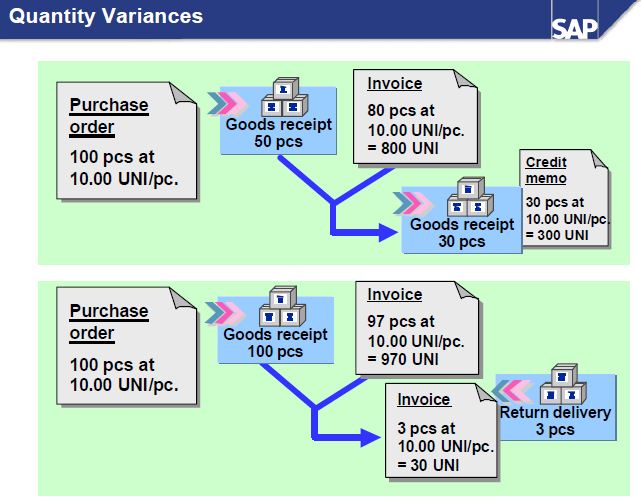
    Ø  The GR/IR clearing account is cleared for a purchase order item when the delivered quantity and the invoiced quantity are the same.

    Ø  If the invoiced quantity is greater than the delivered quantity, the R/3 System expects another goods receipt.

    Ø  If the delivered quantity is greater than the invoiced quantity, the R/3 System expects another invoice.

    Ø  Any differences in the GR/IR clearing account must be cleared. If the differences are not cleared by another goods receipt (or a credit memo) or by an invoice (or a return delivery), you must maintain the GR/IR clearing account manually.

    Ø  Before maintaining the GR/IR clearing account, you should establish that no further goods receipts or invoices are to be posted for a purchase order item.


    Ø  The R/3 System creates an open item on the GR/IR clearing account as a result of the difference between the delivered quantity and the invoiced quantity.

    Ø  If no further invoice is received (or return delivery created), you must clear the open item manually.

    Ø  The R/3 System credits or debits the stock account as a result of you clearing the GR/IR account. For a material with a moving average price, the system credits or debits the stock account only if there is sufficient stock coverage. Otherwise, it makes the posting to a price differences account.

    Ø  You cannot reverse this document.

    Ø  This function is located in conventional Invoice Verification.


    Tuesday, January 28, 2014

    Automatic PO creation in SAP / Evaluated Receipt Settlement (ERS)


         If the material master record has been maintained accordingly, Materials Planning can create purchase requisitions automatically. If source lists with valid sources of supply exist, the system automatically assigns sources of supply to the items in the purchase requisitions, based on the source list.

                The system can automatically convert purchase requisitions to purchase orders if sources of supply re assigned to the requisitions. The “Automatically generated purchase order” indicator must also be set in the material master record and vendor master record.

              In the purchase order, you can enter that you expect an order acknowledgement and/or shipping  notification from the vendor. If you have entered a shipping notification, you can reference it when you post the goods receipt.


      Evaluated Receipt Settlement is an alternate way of processing vendor invoices. In ERS settlement   the vendor does not create an invoice for a purchase order transaction. Instead, the system automatically posts the invoice document on the basis of the data from the purchase order and goods receipts. This ensures that there are no discrepancies between the goods invoiced and the goods received.


    Ø  The system determines the amount invoiced for this purchase order from the order prices in the PO,the payment conditions, tax information, the delivery quantity entered at goods receipt, and the amount charged for this purchase order transaction.

    Ø  If you use the ERS procedure, the conditions arranged with the vendor must be clear and you have to continually update the purchase orders in the system.

    Ø  You cannot process planned delivery costs with the ERS procedure.

    Ø  In Logistics Invoice Verification, you can create a message for the vendor.

    ERS has the following advantages over the Logistics Invoice Verification done by MIRO

    Ø  Purchasing transactions are closed more quickly.

    Ø  Communication errors are avoided. 

    Ø  There are no price and quantity variances in Invoice Verification.

    Settings for ERS Procedure: For settling goods receipt automatically for vendor we have to make the following settings
    Vendor Master Record: You must set the indicator for ERS and for GR-based invoice verification

    Purchasing Info Record: Make sure that No ERS indicator is not checked. The indicator GR-Based IV defaults from the vendor master.

    Purchase Order: You also have to set the indicator for ERS and GR-based invoice verification in Purchase order item. The price in the PO must not be estimated. Payment condition key ,the base date of which is set in customizing, must be entered in the header data for the PO. You must maintain a tax code for the item.

    Goods Receipt: You must enter the goods receipt with reference to the PO.

    Thursday, February 16, 2012

    Duplicate Invoices Function in SAP MM

    In SAP FI module, when checking for duplicated invoices, the SAP system compares the following:

    • Vendor 
    • Currency 
    • Company code 
    • Gross amount of the invoice 
    • Reference document number 
    • Invoice document date.
    SAP OSS Note 305201 clarify this in a more detail below:

    The following fields must be identical to Duplicate invoice check
    Company code (BUKRS)
    Vendor number (LIFNR)
    Currency (WAERS)
    Reference number (XBLNR)
    Amount in document currency (WRBTR)
    Document date (BLDAT)


    If the SAP document is having any one of the above filled different then the SAP system does not consider it as a duplicate invoice and also It will check duplicate invoice check in vendor master data and in posting key is there check box selected for sales related

    The setting you making in OMRDC

    SAP Menu Path: Materials management -> Logistics Invoice Verification-Incoming Invoice -> Set Check for Duplicate Invoices

    This configuration is only valid for SAP MM module and not FI invoices posted via FB60/FB65.

    You should check the F1 help on field "Check double inv." (LFB1-REPRF) in the relevant vendor master record through SAP transaction code: FK02.

    Please also check, that message F5 117 has been set correctly in the SAP IMG using this path:

    Financial Accounting -> Financial Accounting Global Settings ->Document -> Default Values for Document Processing -> Change Message Control for Document Control For Document Processing.

    Then go to the relevant posting key is defined as sales related in SAP transaction code: OB41. You have to flag this field if the duplicate invoice check should work.

    Saturday, September 18, 2010

    3 way match or Three Way Match

    3 way matching process in sap

    The standard procedure for posting procurement transactions in Material Management (MM) is called the ‘three-step verification’, commonly referred as the’ three-way match’. The said procedure contains these three steps:
    1. Purchase Order (PO) - In MM, a purchase order is created either with reference to PR or no reference (directly created). During PO creation and saving, there are no postings yet made to inventory or consumable material and to Financial Accounting. The PO form created is send to the supplier.


    2. Goods Receipt The Goods Receipt step is done upon receipt of the goods deliveries from the suppliers. During goods receipt transaction, the system generates material documents that update the inventory or consumable material. At the same time, a Financial Accounting document is created that posts the values of the goods receipt. The accounting entry that is created is debit (DR) to inventory or consumable material and credit (CR) to GR/IR clearing account.


    3. Invoice Verification- The vendor’s invoice is posted in MM transaction using invoice verification (MIRO). This transaction automatically generates Financial Accounting document that post the accounting entry; Debit GR/IR clearing account and Credit Vendor’s Accounts Payable.

    Wednesday, June 30, 2010

    Different types of Invoice Verification

    Invoices based on Purchase Orders: With purchase-order-based Invoice Verification all of the items of a purchase order can be settled together, regardless of whether or not an item has been received in several partial deliveries. All of the deliveries are totaled and posted as one item.

    Invoices based on Goods Receipt: With goods receipt based Invoice Verification, each individual goods receipt is invoiced separately.

    Invoices without an order reference: When there is no reference to a PO, it is possible to post the transaction directly to a Material Account, a G/L Account, or an Asset Account.

    You can park Invoices that reference POs and GRs as well as Invoices with no reference in the system. When you park a document or change a parked document, neither substitution nor validation is supported. The system only carries out these functions after you actually post a parked document.

    SAP TM overview and Important Master data

      SAP TM (Transportation Management) is the specialized engine designed to handle the physical movement of goods from point A to point B as...