Account Assignment Category in SAP MM
Definition
Account Assignment
category is one of the very important fields available and used in the
purchasing documents. It has many control functions and helps in determining
the objects (e.g. cost center, sales order, project) that are charged
in the case of a purchase order for a material that is intended for direct
usage or consumption.
Use
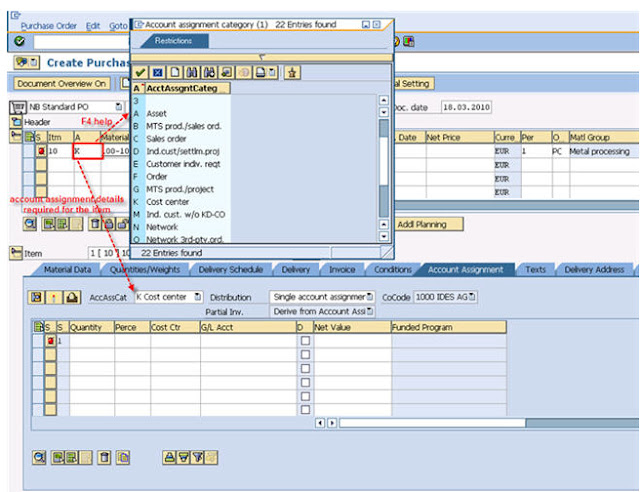
You specify which account assignment object is to be charged via
the account assignment category such as (cost center, sales order, and so on)
Which accounts are to be charged when the incoming invoice or goods receipt is
posted & which account assignment data you must provide. Account assignment
category is used at the time of creation of a purchase order. For normal PO no account
assignment category is used.
Multiple account
assignment allows you to apportion the cost of a material covered by a PO
among your own cost center and several others, for example.
You specify which account assignment object is to be charged via the account
assignment category.
Account Assignment Category
The account assignment category determines:
The nature of the account assignment (cost center, sales order,
and so on)
- Which accounts are to be charged
when the incoming invoice or goods receipt is posted
- Which account assignment
data you must provide
Account Assignment Categories
Description
|
Required
account assignment data
|
Asset (A)
|
Main
asset number and sub-number
|
Order (
F)
|
Order
and G/L account number
|
Production
order
|
Production
order number
|
Cost
center(K)
|
Cost
center and G/L account number
|
Sales
order (C)
|
Sales
order and G/L account number
|
Individual
customer requirement(E)
|
Sales
order and G/L account number
|
Project
|
Project
and G/L account number
|
Unknown
|
None
|
Note: You can change the
account assignment category after entering the item provided that field
selection has been set up accordingly in Customizing.
Automatic Account Determination
The system attempts to suggest a specific G/L account for a given
preliminary account assignment. The number of the G/L account to be charged can
be automatically suggested by the system provided that automatic account
determination has been defined for the chart of accounts of the relevant
company code.
Specifying Single Account Assignment
With this procedure, you specify one account
assignment for a PO item.
- When entering an item on the
item overview screen, specify the account assignment category for the
item.
- Choose Item ® Account assignments.
The box for entering account assignment data appears.
- Enter the account assignment
data that is dependent on the account assignment category.
- If additional information is
available on a specific account assignment, the More field
is displayed.
- If you wish to enter further
items with the same account assignment data, choose Acct. assgt.
on. The account assignment data will then automatically be adopted in
the next item.
- Branch to the item overview
and repeat the process if necessary.
- Save the purchase order.
Specifying Multiple Account Assignment
This procedure allows you to apportion the costs associated with a
PO item among several cost centers, for example.
With multiple account assignment, the account assignment data
entered takes the form of individual account assignment items.
Prerequisites
When specifying multiple account assignment for an item, you must
consider the following points:
- How the net value of a PO
item to be distributed is (apportioned) among the individual account
assignment items?
The costs can be allocated on a quantity or percentage basis
(for example, 10 pieces or 10% of the order value to cost center 100).
- How are the costs to be
apportioned if only a part of the ordered quantity has been delivered and
invoiced?
- The partial invoice amount can be
distributed proportionally, i.e. evenly, among the account assignment items of
a purchase order.
- The partial invoice amount can be
distributed on a "progressive fill-up" basis, i.e. the invoiced
amount is allocated to the individual account assignment items one after the
other. Only when account assignment item 1 has been charged in full is item 2
charged; only when account assignment item 2 has been charged is item 3
charged, and so on. This process continues until the total invoice value of the
PO item is reached.
Procedure
- When entering an item,
specify the account assignment category for the desired item on the item
overview screen.
- To do so, choose Item ® Account assignments.
The account assignment window appears.
- Enter the account assignment
data for the first account assignment item.
Choose Change display to call up the
multiple account assignment screen.
- In the item fields (upper
part of this screen) enter the relevant data:
– Select the GR non-val. field to designate
the GR for this item as non-valuated (as the item has been ordered for direct
consumption).
– In the Distribution field, specify
whether the costs are to be apportioned on a quantity basis or by percentage.
– In the Partial invoice field, specify
whether the value of a partial invoice is to be allocated to individual account
assignment items successively, whereby one is debited in full before a posting
is made to another one (in which case, some account assignment items may not be
debited at all as a result of a particular invoice), or whether the value of
such a partial invoice is to be distributed among all account
assignment items in equal portions.
- For each account assignment
item, enter either the quantity or the percentage of the total
value to be charged to the relevant account assignment item.
Note: To enter further items with the same
account assignment data, choose Edit ® Repeat account
assignment ® Switch on. The account assignment data will then
be automatically adopted in the next item.
- Repeat as necessary for
other items.
- Save the purchase order.
A vendor
submits an invoice for 60% of the total order value. The cost of the ordered
goods is to be divided equally among cost centers 1 - 5 (that is, 20% of the
total cost is to be borne by each).
If you
specified for the PO item that the value of a partial invoice is to be debited
to the individual account assignment items on a "progressive fill-up"
basis, cost centers 1 to 3 will each be debited with their full 20% share of
the total cost on the basis of this partial invoice, whereas cost centers 4 and
5 will not be charged at all. (The latter two cost centers will not be debited
until the remaining amount is invoiced.)
ACCOUNT ASSIGNMENT CATEGORY RELATED TRANSACTION CODES
SPRO -
Customizing - Edit Project Basis - Customizing Project Management (IMG)
OBYC - C FI
Table T030 FI - Basic
Functions
OKB9 -
Change Automatic Account Assignment CO - Overhead Cost Controlling
ME21N -
Create Purchase Order MM -
Purchasing
OME9 - C
MM-PUR Acct. Assignment Categories MM - Basic Functions
MIRO - Enter
Incoming Invoice MM -
Invoice Verification
ME51N -
Create Purchase Requisition MM - Purchasing
MIGO - Goods
Movement MM -
Inventory Management
FS00 - G/L
acct master record maintenance FI - Basic Functions
KA02 -
Change Cost Element CO -
Overhead Cost Controlling
OMS2 -
Maintain Material Types Logistics
- Material Master
OLME - IMG
View: Purchasing MM - Basic
Functions
ME22N -
Change Purchase Order MM -
Purchasing
RZ20 - CCMS
Monitoring Basis -
Monitoring
SE16 - Data
Browser Basis -
Workbench Utilities


